Text Replacement on Mac: How to Set It Up, Sync It, and Know When It Won't Help
A complete guide to text replacement on Mac — how to add snippets in System Settings, how iCloud sync really behaves, and the one job it can never do.
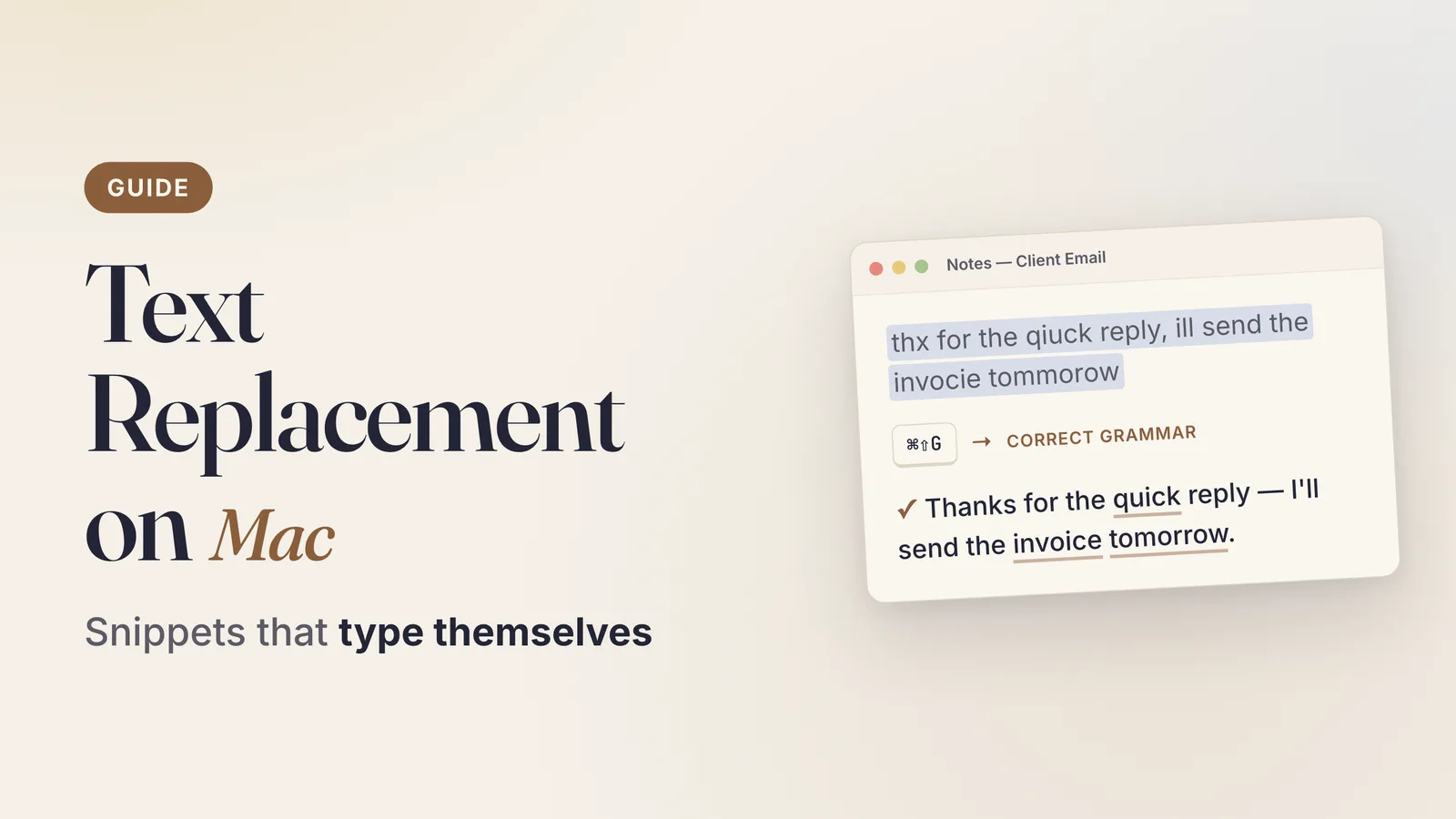
Every Mac ships with a small, quiet feature that can save you thousands of keystrokes a year, and most people never turn it on. It’s called Text Replacement, it lives three clicks deep in System Settings, and it costs nothing.
This guide covers how to set it up, how it syncs to your iPhone and iPad, what to actually put in it, why it sometimes refuses to fire in certain apps — and the one category of work it was never designed to do.
Everything below was verified on macOS 26 Tahoe. The steps are identical on macOS 15 Sequoia; if you’re on macOS 12 Monterey or earlier, the pane is called System Preferences → Keyboard → Text instead.
What Text Replacement actually is
Text Replacement is a system-wide substitution table. You store a pair: a short trigger and a longer string. When you type the trigger and follow it with a space or punctuation, macOS swaps it for the replacement.
That’s the whole feature. It is deterministic and literal — the same input always produces the same output, character for character. It does not think about what you wrote, it does not read context, and it never surprises you. For anything you type verbatim more than twice a week, that predictability is exactly the point.
It’s also the same mechanism that quietly fixes teh → the out of the box, which is why the feature sits next to autocorrect in Apple’s settings and why people often confuse the two.
How to set up text replacement on Mac
- Open the Apple menu → System Settings.
- Click Keyboard in the sidebar.
- Click the Text Replacements… button (under the Text Input section).
- Click the + button at the bottom left of the sheet.
- In the Replace column, type your trigger — for example
;sig. - Press Tab, and in the With column type the full text you want inserted.
- Press Return, then click Done.
That’s it. The replacement is live immediately in every app that supports the feature — no restart, no login.
Two details worth knowing while you’re in there:
- The With field accepts multiple lines. Press Option-Return inside the field to add a line break. This is how you store a three-line email signature or a mailing address as a single snippet.
- You can import and export. Drag a
.plistfile onto the list to import snippets, or select entries and drag them to the Finder to export them. Useful when you set up a new Mac or want a backup outside iCloud.
Choose triggers that can’t fire by accident
The most common beginner mistake is using a real word as a trigger. If you set omw → On my way!, you’re fine. If you set add → your street address, you will be miserable.
Prefix every trigger with a character you never type at the start of a word. The two conventions that work well:
- A semicolon:
;sig,;addr,;iban - A double letter plus the abbreviation:
xxsig,xxaddr
Pick one and stay consistent. Six months from now you want to be able to guess your own triggers.
How Text Replacement syncs across your devices
Text replacements sync through iCloud, and the sync is bundled into iCloud Drive — specifically the Documents & Data category. There is no individual toggle for text replacements anywhere in Settings. If iCloud Drive is on and all your devices are signed into the same Apple Account, your snippets propagate to iPhone, iPad, and any other Mac.
An honest caveat: this sync has had a long, well-documented history of being unreliable. Apple moved it from the old iCloud Core Data stack to CloudKit back in iOS 11 and macOS High Sierra, and it improved — but users still regularly report snippets that sync one direction only, deleted entries that reappear, or a new device that arrives empty.
If yours isn’t syncing:
- Confirm System Settings → [your name] → iCloud → Drive is on, on every device.
- Confirm all devices are on the same Apple Account.
- Force quit System Settings on the Mac and the Settings app on iOS, then reopen. Sync often flushes on relaunch.
- Give it time. Propagation is not instant and is not user-triggerable.
- As a fallback, export your list to a
.plistand keep it somewhere you control. Treat iCloud as a convenience, not a backup.
Snippets worth adding today
The best snippets are the strings you retype without thinking. Some that earn their keep:
| Trigger | Expands to |
|---|---|
;sig |
Your full email sign-off, name, title, and phone |
;addr |
Your postal or shipping address |
;em |
Your long work email address |
;iban |
Bank details you paste into invoices |
;cal |
“Here’s my calendar link: …” |
;ty |
“Thanks so much — I really appreciate it.” |
;rn |
A standing reply you send weekly |
;shrug |
¯\_(ツ)_/¯ |
Also useful: words your Mac gets wrong. If your surname, your company name, or a technical term keeps getting mangled, add it as a replacement that maps the misspelling to the correct form. That’s a targeted fix, and it’s far less disruptive than turning off autocorrect on Mac entirely.
Why text replacement stops working in some apps
This is the single most common complaint, and it has two distinct causes.
Cause one: the feature is toggled off for that app. Text Replacement can be disabled per-app from the Edit menu. In the app where it’s failing, choose Edit → Substitutions and check whether Text Replacement has a checkmark next to it. If not, click it. macOS remembers this per app, and a single stray click years ago is often the whole explanation.
Cause two: the app doesn’t use macOS text input properly. Text Replacement is a service of AppKit’s text system. Apps that draw their own text fields — most Electron and Chromium-based apps, plus web editors running inside a browser — bypass it. Google Docs is the textbook example: snippets that work everywhere else simply never fire there. Many of those apps also don’t have an Edit → Substitutions menu at all, which is the giveaway.
There’s no user-side fix for cause two. If your work lives in Google Docs, Slack, or a Chromium browser, you need a tool that injects text at a lower level. That’s the gap third-party expanders fill: Espanso (free, open source, cross-platform, YAML config), Rocket Typist (one-time purchase, Mac and iOS), and TextExpander (subscription, team snippet libraries, cross-platform). All three work in apps where Apple’s built-in table doesn’t. Our fuller comparison of that category lives in the AI text expander guide.
Where text replacement stops helping entirely
Here’s the boundary that no amount of configuration moves.
Text Replacement handles text you have not written yet. You type a trigger, you get a fixed string. It is the right tool — genuinely the right tool, and free — for signatures, addresses, boilerplate paragraphs, legal disclaimers, and any phrase you can define in advance.
It cannot touch text you have already written. There is no snippet for:
- “Make this three-paragraph email one paragraph.”
- “This reads too blunt — soften it.”
- “Fix the grammar in what I just typed.”
- “Rewrite this for a client instead of a colleague.”
Those aren’t substitutions. They’re rewrites, and the output depends entirely on the input. A lookup table has nothing to offer. Neither does spell check on Mac, which catches misspellings but says nothing about tone, length, or clarity.
How WunderType covers that half
WunderType is a macOS menu bar app built for exactly that second category. It doesn’t replace Text Replacement — keep using it for your signature — it handles the job Text Replacement was never designed for.
The workflow is three steps: select text in any app, press a keyboard shortcut, and the rewritten text appears in place. No window steals focus, no copy and paste, no switching to a chat tab. It works in any Mac app that handles text, via the macOS Accessibility API — including the Chromium and Electron apps where snippets go silent.
Five modes ship in the box, each with its own shortcut: Correct Grammar (⌘⇧G), Improve Writing (⌘⇧I), Make Concise (⌘⇧C), Make Formal (⌘⇧F), and Make Casual (⌘⇧K). You can also write your own prompt in plain English and bind it to any key you like.
On the AI side you choose the engine. On-Device runs models locally on your Mac’s GPU through Apple MLX — no API key, no account, and fully offline after a one-time model download. Or point it at Ollama on localhost, or bring your own OpenAI or OpenRouter key, which macOS stores in the Keychain. There’s no WunderType server in any configuration; nothing is relayed through us. If local-only matters to you, the local AI writing tools guide goes deeper on that setup.
It’s $8.99 on the Mac App Store, one time, no subscription — the same pricing logic behind every app in our one-time purchase Mac AI apps roundup. Requires macOS 15 Sequoia or later.
The short version
Set up text replacement on Mac this afternoon. It takes four minutes, it’s free, and the payoff compounds every day you keep using your Mac. Use semicolon-prefixed triggers, put your signature and address in first, and check Edit → Substitutions when a snippet won’t fire.
Then be clear-eyed about the boundary. Snippets handle what you know you’ll type. For everything you’ve already typed and now want to sound better, you need something that reads the sentence.
How to Check German Grammar on a Mac — in Any App, Without Copy-Paste
Check German grammar system-wide on your Mac: Kasus, Kommas and Groß-/Kleinschreibung fixed in Mail, Word or Slack with one shortcut — no pasting into websites.
Related →Affect vs Effect: The Rule That Finally Sticks
Affect vs effect made simple: the core rule, the RAVEN trick, the exceptions, and examples.